About this guide
Activities in APSEA must be submitted for consideration for Institutional Competencies (IC) or Experiential Learning (EL). Submitting an activity for both EL and IC is also acceptable.
1
Log in to APSEA
- Go to https://apsea.uga.edu/.
- Select the “Create or Change an Activity” link or button.
- Log into APSEA with your UGA MyID and Password.
Need access?
If you need access to a reviewer role in APSEA, please reach out to the Office of the Registrar at clr@uga.edu.
2
Select an Activity Proposal for Review
- Select the “Edit or Review a Proposal” button.
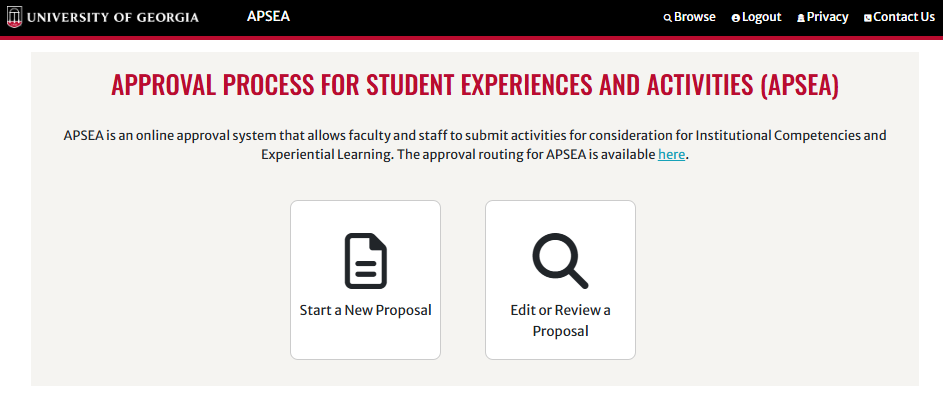
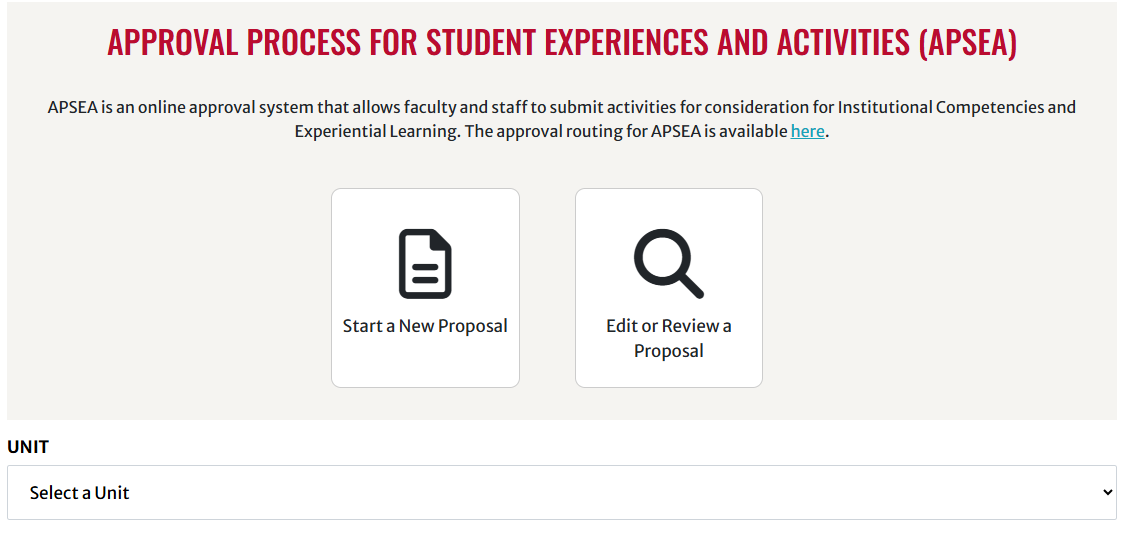
- Select your Unit from the “Unit” dropdown menu.
- Select your role — “VP” or “College/School Dean” — from the “Role” dropdown menu.
- Select a task — “VP Review” or “College/School Dean Review” — from the “Task” dropdown menu.
Returned proposals
If the proposal has been returned for edits by the Office of the Registrar or the IC/EL Subcommittee, it will be found through the “Proposals Returned for VP/Dean Action” task. Otherwise, all new activity proposal submissions will be found through the “VP Review” or “College/School Dean Review” task.
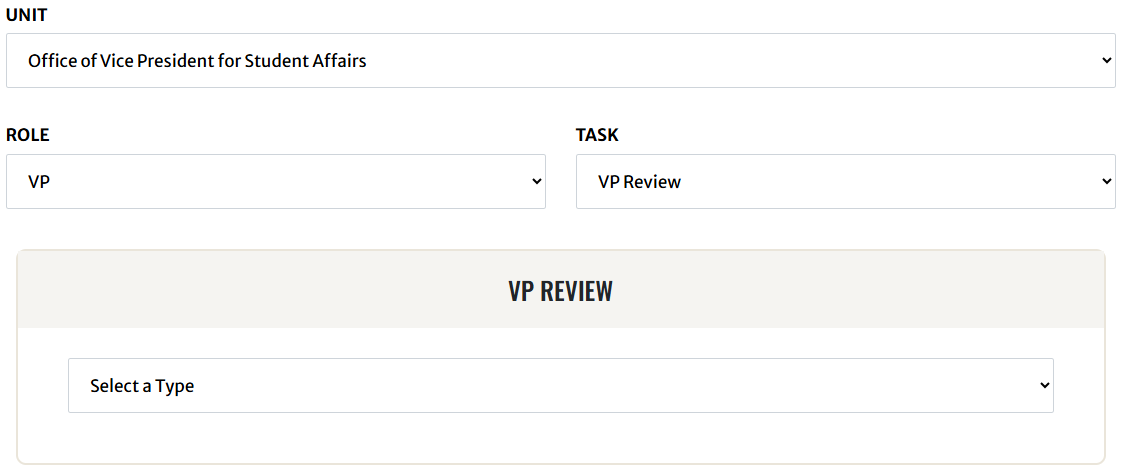
- Select an activity type from the “Select a Type” dropdown menu. This menu will be populated with the activity types of any proposals in your Unit that have been submitted for your review.
- Select the radio button beside the activity proposal you wish to review, then select “Proceed”.
3
Review the Activity Proposal
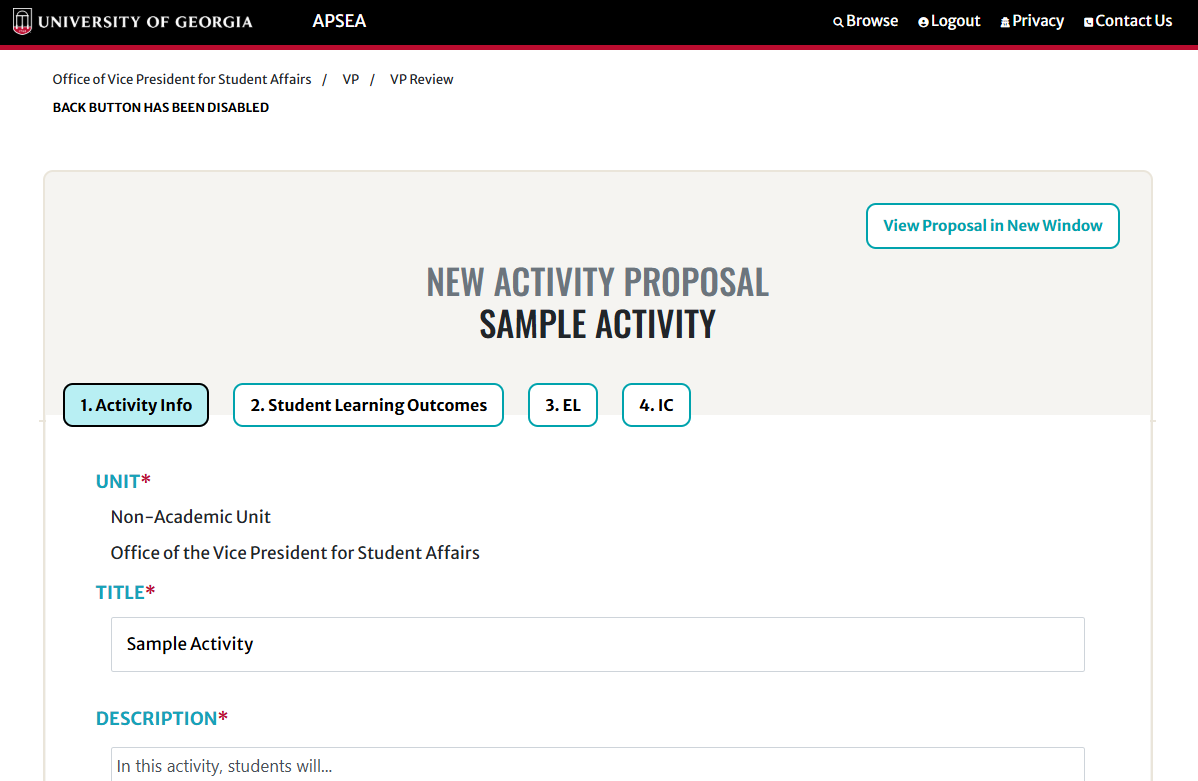
Review and edit the submitted information for the activity proposal on each of the four tabs as needed:
1. Activity Info
2. Student Learning Outcomes
3. EL
After Dean/VP approval, the EL Subcommittee will review for fulfillment of the EL requirement if applicable.
4. IC
After Dean/VP approval, the IC Subcommittee will review for fulfillment of any submitted ICs.
4
Preview or Share
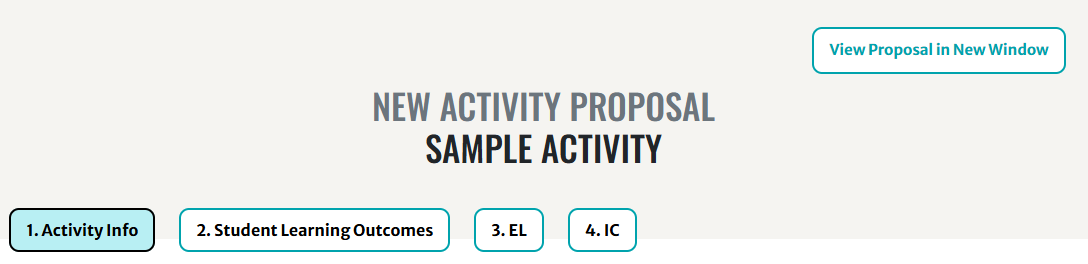
- To display a preview of the activity proposal in a new window (without text boxes, printable), click the “View Proposal in New Window” button at the top right of the proposal page.
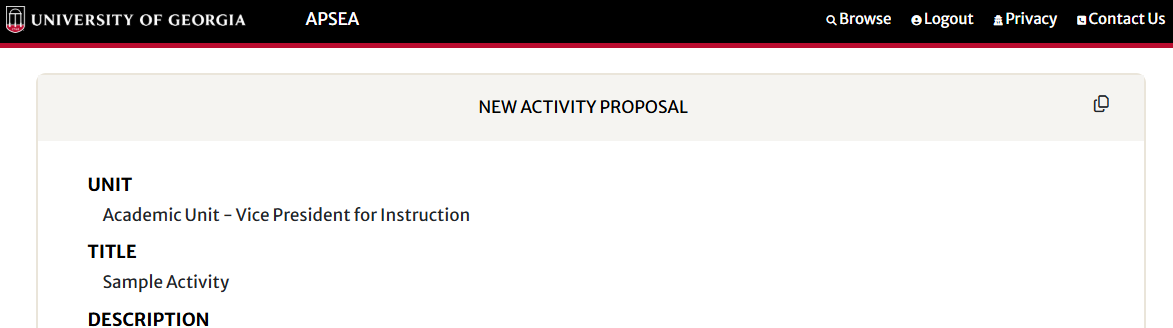
- To copy a link to the preview, click the icon in the top right corner of the preview page.
Note
This will allow you to share the activity proposal that is in progress. Once the activity is submitted, the proposal will be viewable in APSEA Browse.
5
Save, Return, or Approve
Navigate to the bottom of the proposal page.
To Save for Further Review
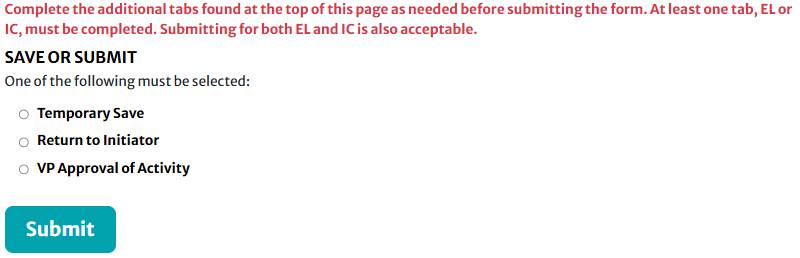
- Select the “Temporary Save” radio button and click the “Submit” button.
- To access this saved proposal later, follow Step 1 and Step 2 above.
To Return to the Initiator for Edits
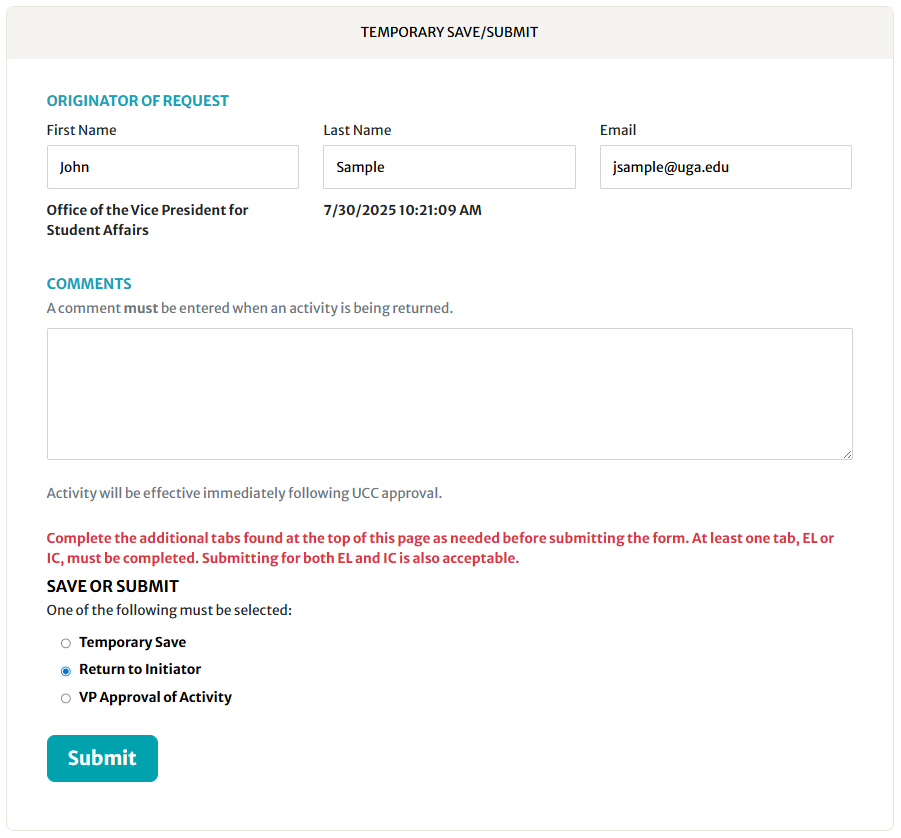
- First, enter an explanation or feedback in the “Comments” text field. This information will be viewable by the Initiator and is meant to assist with making any requested edits.
- Select the “Return to Initiator” radio button, then click the “Submit” button.
To Approve
- Select the “VP Approval of Activity” or “College/School Dean Approval of Activity” radio button, then click the “Submit” button.
What happens next
After approval, the activity proposal is sent forward for review by the Institutional Competencies Subcommittee and/or the Experiential Learning Subcommittee.
Questions? clr@uga.edu