1
Log in to CAPA Voting
- Go to https://capa.uga.edu/voting.
- Log in with your UGA MyID and Password.
The committee(s) associated with your MyID will appear, along with the number of courses awaiting review.

2
Select Your Committee
- Click the radio button next to the desired committee to view its course proposals.
- The list of course proposals will appear at the bottom of the screen.
Viewing vote results
If committee members have already voted, the results will appear in the Approved, Denied, and/or Needs Discussion columns. Click on the number in any column to view who has voted and any comments.

3
Review a Course Proposal
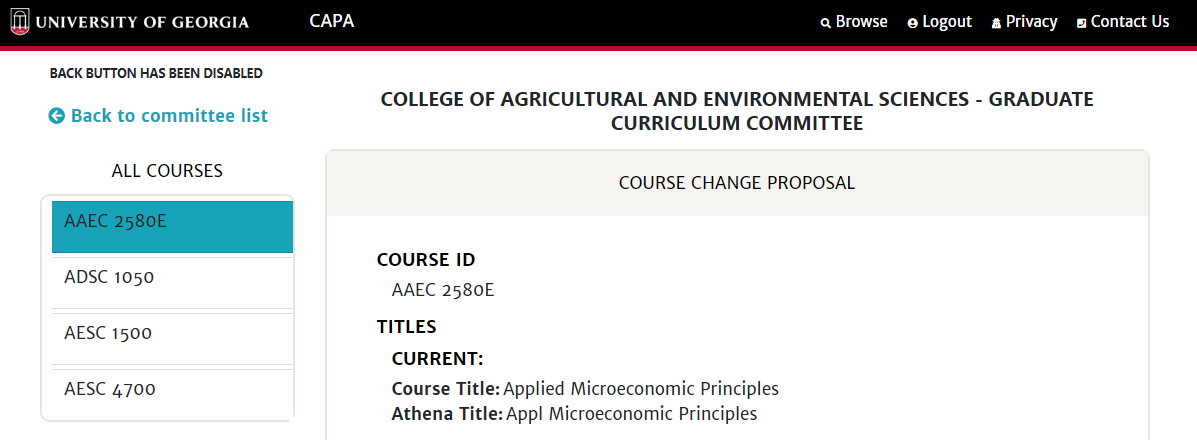
- Click on the course ID to open the full course proposal.
This page displays the full course proposal, type of proposal, as well as committee members, their votes, and any comments.
Types of course proposals include:
New Course
Brand new course
Course Change
Proposed changes appear in blue
Course Deletion
Remove an existing course
4
Cast Your Vote
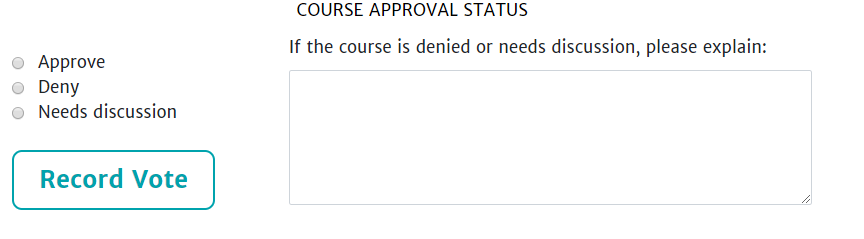
- The voting options are listed at the bottom of the proposal page.
- Click the radio button next to your desired vote.
Note
If “Deny” or “Needs Discussion” is selected, a reason must be entered in the text box.
- Click “Record Vote” to submit.
5
After Voting
After your vote is recorded, a symbol indicating your vote appears beside the course ID in the “All Courses” list in the top left-hand corner of the proposal page.
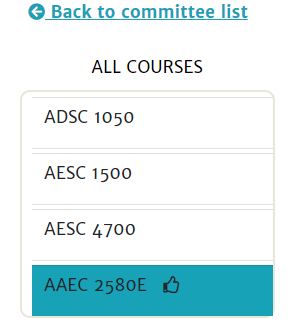
- To vote on another course, click on the course ID in the “All Courses” list, or click “Back to committee list” to return to the CAPA voting home page.
- If needed, you can repeat the process to change your vote.
Questions? capa@uga.edu · 706-542-6358